To make a UGC video on your phone, write a short Hook, Body, and CTA, record each sentence with a steady setup, let UGCut auto-cut the take, add readable captions, then export a vertical file. Keep the first line specific, retake only weak sentences, check every caption, and review privacy before posting.
UGC footage does not need a complicated set. A repeatable phone workflow matters more: make the message clear before you hit record, capture usable takes, then spend your attention on the few choices that change whether somebody watches. The sequence below follows UGCut's creator loop and works for a product demo, testimonial, or problem-solution video.
1. Script: give the video a spine
Start with one promise. A viewer should know what the video is about before the first sentence ends. For a first draft, aim for five to eight spoken sentences. Give each sentence one job, then label the beats as Hook, Body, or CTA so the recording has a clear shape.
Write the way you talk, not the way a product page sounds. Replace "this innovative solution improves your daily routine" with the specific moment that made you care. Read the draft out loud once. If you run out of breath, bury the point, or need three commas to say one thought, split the sentence before you film.
Hook: If your sunscreen pills under makeup, try this 30-second layer test.
Body: I put a pea-sized amount on one cheek, wait two minutes, and apply concealer. This lets me check whether the two layers stay smooth before I do the rest of my face.
CTA: Save this test for your next makeup day and check the label before you buy.
That example is intentionally concrete. It names a problem, shows the test, and asks for one action. For a brand brief, keep the product detail true to the brief and avoid adding a result you did not observe. If the client wants multiple hooks, duplicate only the Hook line and keep the Body and CTA stable while you compare versions.
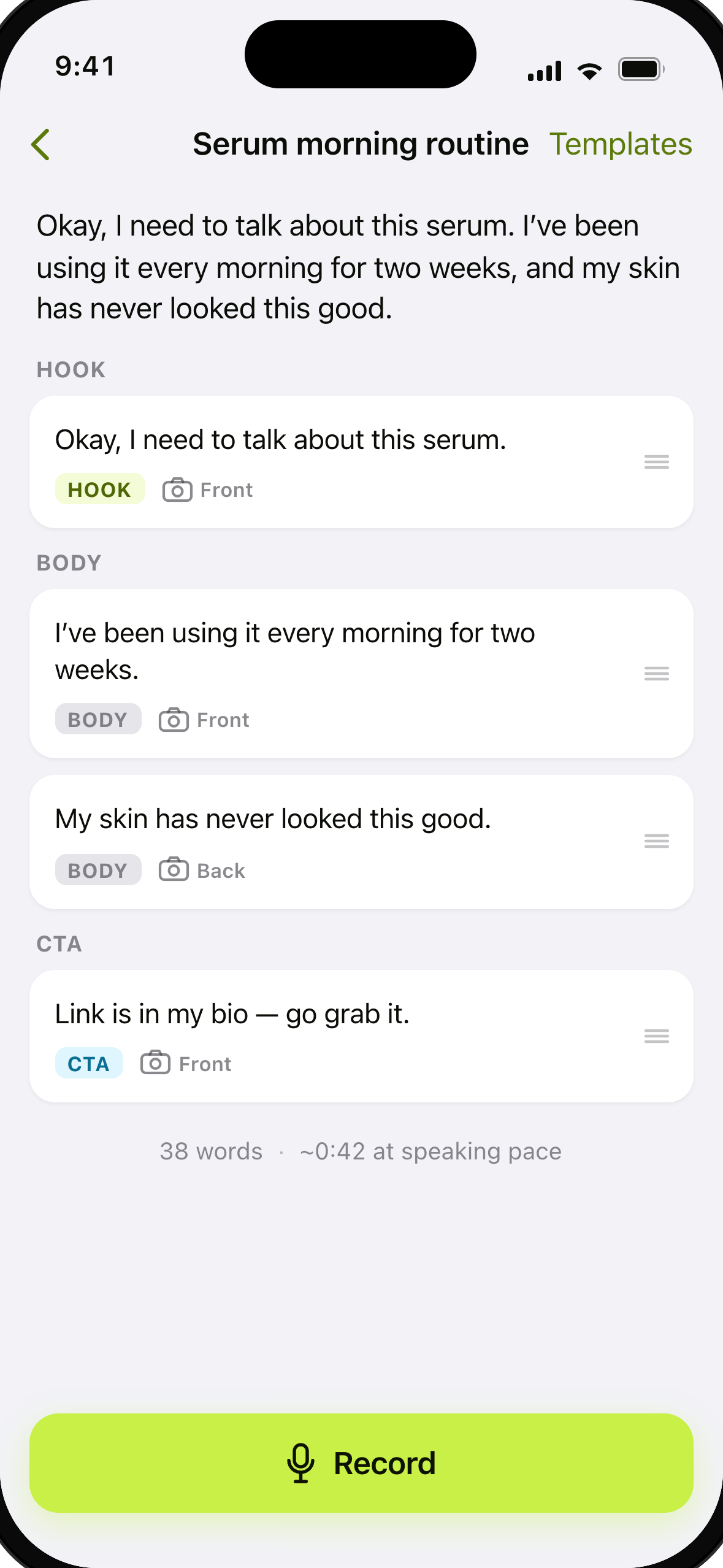
UGCut's script editor is designed for this text-first step. You can start from a blank script, split the copy into sentences, and keep a hook variant tied to the same body. Even if you draft somewhere else, bring one clean version into the script before recording.
2. Record: make your phone setup boring
A boring setup is a reliable setup. Record vertically, put the lens close to eye level, and support the phone so your hands can focus on delivery. Frame from roughly mid-chest upward with a little space above your head. Face a window or soft lamp from slightly to the side, and remove bright light sources behind you.
- Background: clear anything that reveals a home address, private screen, or client information.
- Audio: move away from fans and hard echoing walls; speak toward the phone instead of turning your head away.
- Delivery: look at the lens for the Hook and CTA, then use natural eye movement while you explain the Body.
- Handles: leave a short pause before the first word and after the last word so the cut has room to breathe.
For a quick check before you shoot, use our guide to fixing bad audio in an iPhone video and listen before you record the full take.
Do one low-pressure rehearsal without trying to make it perfect. Then record the real take sentence by sentence. The goal is not to sound like you are reading. Keep your voice a little more energetic than a private conversation, and use the meaning of each line as your cue for pace.
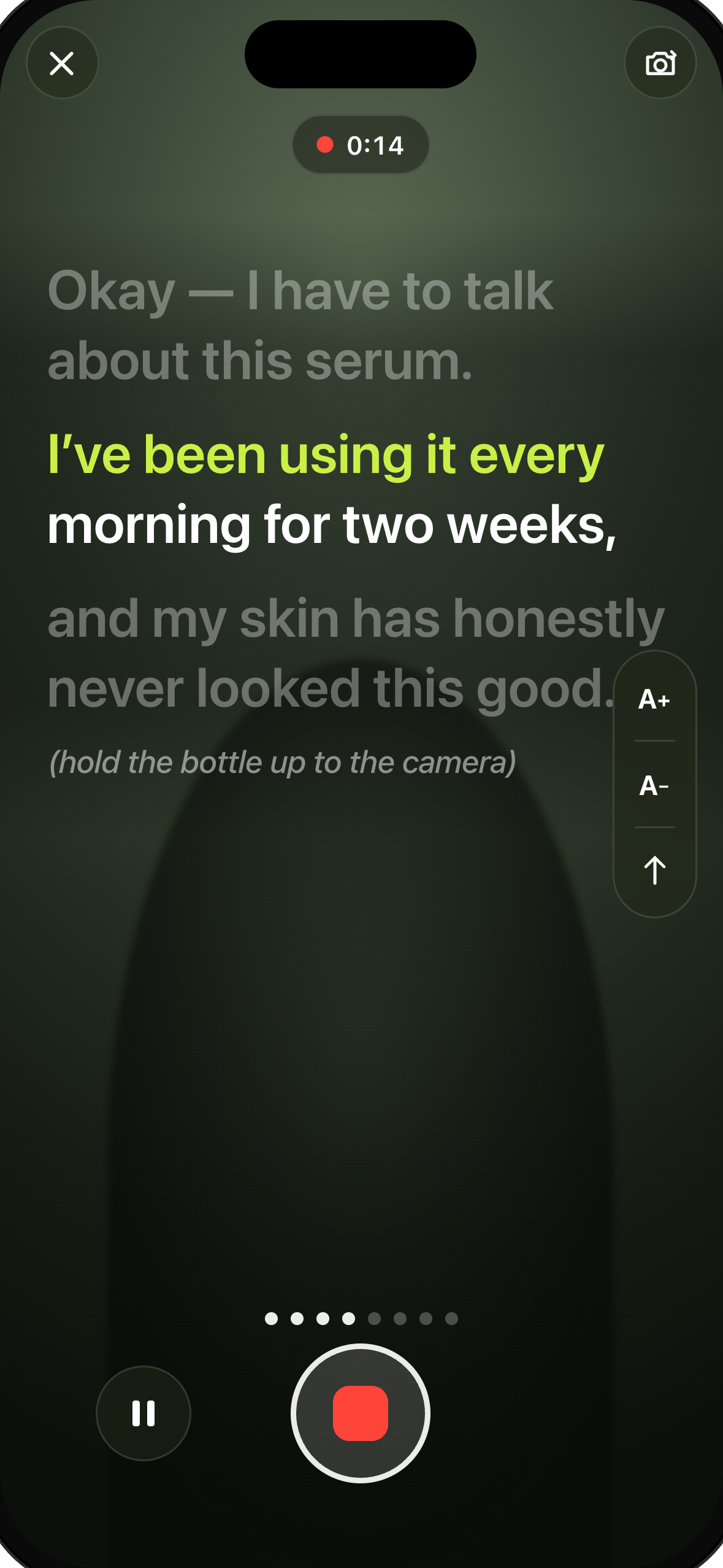
The UGCut teleprompter is designed to keep the script in the same workflow as the camera. Read for meaning, not for perfect punctuation. If your eyes look too fixed, slow the scroll or rehearse once more until you can glance at the words and return to the lens naturally.
Retakes: repair the sentence, not the whole shoot
Most phone shoots lose time because one weak line forces a complete restart. When you stumble, pause, take a breath, and repeat only that sentence. Keep your phone position, light, and distance unchanged. Give the line a clean beginning and ending, even if the first attempt was messy.
- Finish the take or stop after the weak sentence.
- Identify the exact line that needs another version.
- Record two alternatives with different emphasis, not two identical apologies.
- Choose the take that sounds most like a real recommendation.
UGCut's takes review is designed to keep the choice tied to the script line. That makes a retake useful instead of creating a second pile of clips you have to rename later.
3. Auto-cut: check sentence edges, not a timeline
Once the recording is done, review the cut in sentence order. The useful question is not "can I make this timeline more complicated?" It is "does each sentence start cleanly, end cleanly, and support the idea I wrote?" Listen for clipped first words, long dead air, a breath that changes the meaning, or a jump cut that feels harsher than your delivery.
UGCut's auto-cut per sentence is designed to anchor the rough cut to the script. If a boundary feels wrong, the fastest fix is usually a cleaner retake with a deliberate pause. Check the Hook first because a small stumble there changes the first impression. Then check the CTA so the requested action does not disappear into a cut.
Do one review for story and one review for continuity. On the story pass, remove repeated words and choose the strongest Hook. On the continuity pass, watch the face, hands, and product position across sentence changes. A natural jump cut is fine for UGC. A distracting change in lighting or object position is worth another take.
4. Caption: make every spoken word easy to follow
Captions should support the delivery, not compete with it. Use a high-contrast style, keep the words away from the bottom controls, and avoid covering the product demonstration. The exact style can be part of a client's brief, but the review is always yours: watch the video muted and ask whether a viewer can follow the point from the text alone.
- Proof names, product terms, numbers, and the CTA by comparing the captions with your script.
- Fix words that speech recognition heard incorrectly instead of trusting a fluent-looking sentence.
- Keep line breaks close to natural phrases so the text does not flash in awkward chunks.
- Check that the active-word treatment remains readable rather than turning every frame into visual noise.
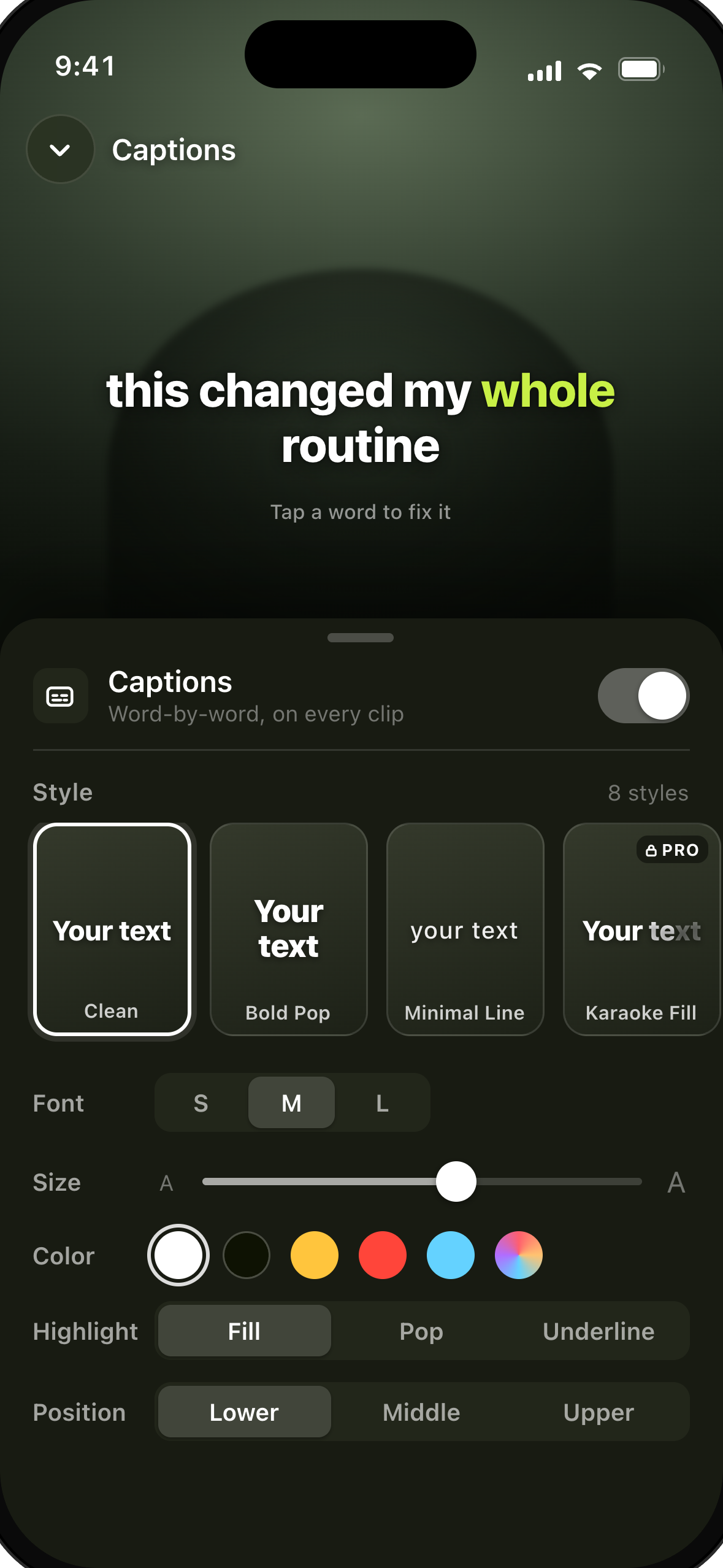
UGCut's auto captions are designed as part of the on-device workflow. Treat the generated words as a first pass. Caption errors are especially easy to miss when you know what you meant, so watch the finished cut once with sound off and once with sound on.
5. Export: make the final phone check before posting
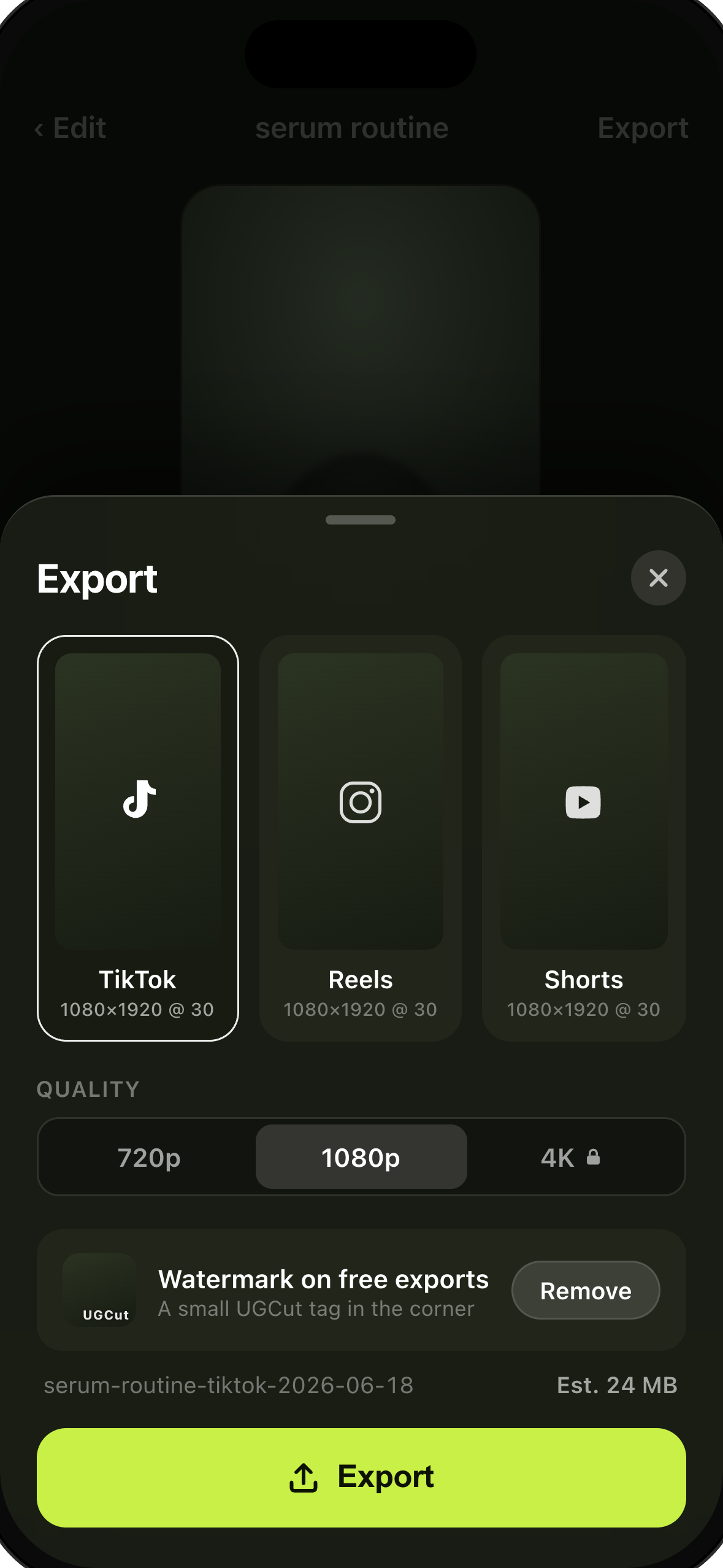
Before you export, watch the complete video without stopping. Check the first frame for a clear reason to keep watching, the last frame for a complete CTA, and every caption for spelling. Make sure no caption, face, product detail, or important gesture is hidden by the platform interface. Use the portrait preset and its safe-zone preview for the destination you plan to test.
- Watch the full cut once at normal speed.
- Check the Hook, caption spelling, product framing, and CTA.
- Open the safe-zone preview and look at the edges, not only the center.
- Export, open the saved file from Photos, and inspect that copy before uploading.
The platform export page explains the portrait presets and safe-zone preview. You can also start at the UGCut app overview to see how Script, Record, Auto-cut, Caption, and Export fit together.
Privacy: protect the people and details in the frame
Privacy starts before the camera opens. Scan the background for notifications, names, addresses, order numbers, open client dashboards, and anything reflected in a mirror. If a brand brief includes customer information, remove it from the script and keep it out of the shot unless you have a clear reason and permission to show it.
UGCut positions the core script, recording, auto-cut, caption, and export loop as on-device. Read the current privacy page for the complete product description rather than relying on a short blog summary. On iPhone, you can also review which apps have access to camera, microphone, and other hardware in Settings. Apple's iPhone User Guide explains that control.
For paid creator work, make a final consent check before posting. Ask whether every person shown agreed to appear, confirm that the product claims match the approved brief, and do not expose a client's unreleased campaign date or internal document. A clean export is not worth a privacy mistake.
The phone-first UGC checklist
- Script: write one Hook, a useful Body, and one CTA. Read it aloud once.
- Record: stabilize the phone, frame your face, control the light, and leave handles.
- Auto-cut: review sentence boundaries and replace only the lines that need work.
- Caption: proof names and numbers, check line breaks, then watch muted.
- Export: inspect the safe zone, open the saved file, and confirm the CTA survives.
- Privacy: scan the frame, confirm consent, and read the current privacy details.
The advantage of a script-first workflow is not that it removes your creative judgment. It puts that judgment in the right places: the first line, the delivery, the best take, the readable caption, and the final check. Once those decisions are clear, your phone is enough to make a useful UGC video from start to finish.